
LinkedIn Ad Library: How to Find, Save & Break Down Competitor Ads (2026)
If you run B2B marketing, LinkedIn ads are a goldmine—because they often reveal the real offer strategy behind pipeline: webinars, reports, templates, Lead Gen Forms, “book a demo” CTAs, and role-specific messaging you won’t see on consumer-first platforms.
LinkedIn’s Ad Library makes that intelligence public. You can search for ads by advertiser or keyword, filter by country and date range, and open each ad’s details to see how it was positioned.
But here’s the problem: discovering ads is easy. Building a system that turns ads into repeatable learnings is the hard part.
This guide shows you:
- how to use the LinkedIn Ad Library efficiently, and
- how to turn “found ads” into a reusable workflow (save → organize → analyze → script) with Adlude.
Key takeaways
- LinkedIn Ad Library is best for B2B competitor intelligence: ICP messaging, offers, proof, and format choices.
- Don’t study single ads—study patterns: repeated hooks, recurring lead magnets, and consistent landing-page angles.
- The fastest workflow is: discover → save → tag → breakdown → script (not screenshot folders).
- LinkedIn-specific “winners” often revolve around: role pain points + proof + lead magnet/demand gen offer.
- If you want speed, collect across platforms (LinkedIn + Meta + TikTok + Shorts) and compare patterns.
What is LinkedIn Ad Library (and what it can’t do)?
LinkedIn’s Ad Library is a public database showing ads that have run on LinkedIn. It’s designed for transparency, but for marketers it also functions as a competitor-research tool.
What it’s good for:
- Seeing how competitors position their product to specific job roles and industries.
- Identifying recurring offers (demo, webinar, report, ROI calculator, template).
- Learning which formats dominate in your niche (Document Ads, Video, Carousel, Lead Gen).
- Spotting message shifts over time: new angles, new claims, new proof, new landing pages.
What it won’t do well:
- Permanent saving & organization (links change, ads rotate, bookmarks get messy).
- Team workflows (sharing, tagging, curation, versioning).
- Turning insights into deliverables (briefs, scripts, storyboards, shot lists).
- Cross-platform context (many “winning ideas” repeat across Meta/TikTok/Shorts).
Step-by-step: Find competitor ads in LinkedIn Ad Library
Goal: build a repeatable research loop that produces testable hypotheses—not a pile of screenshots.
Step 1) Start with advertiser searches (highest signal)
For competitor research, advertiser searches are usually more reliable than keywords.
What to do:
- Search for a direct competitor’s company name (or brand name).
- Open their ads list and quickly scan for recurring themes.
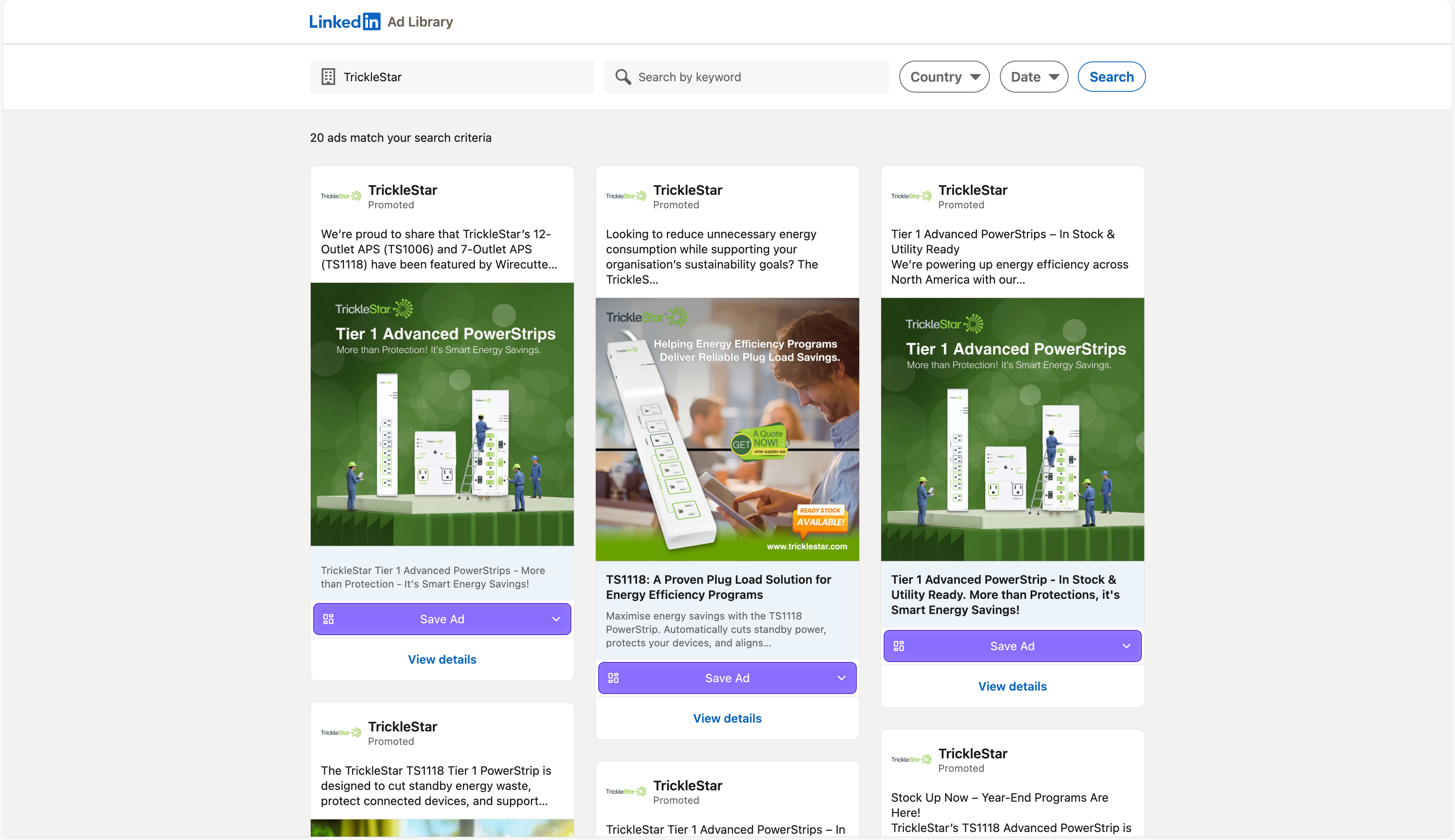
What you’re looking for:
- repeated promises (e.g., “reduce CAC,” “book more demos,” “shorten sales cycle”)
- repeated lead magnets (webinar/report/template)
- repeated CTAs (download vs demo vs signup)
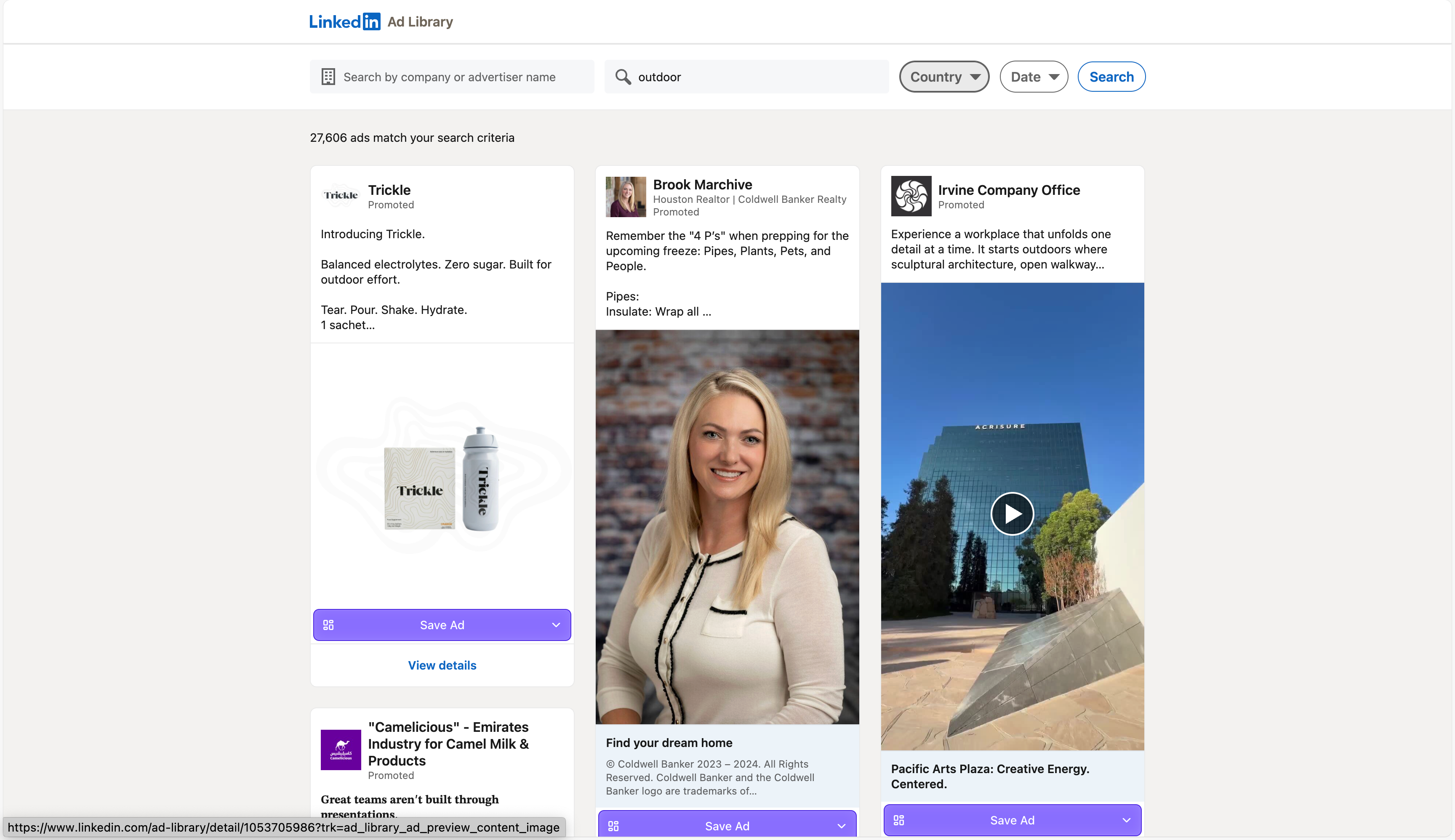
Step 2) Use keyword searches to find category patterns
Keyword searches are great for discovering:
- “industry-wide” hooks (what everyone is claiming)
- common offers (e.g., “State of X report,” “benchmark,” “pricing guide”)
- positioning language (the words the market uses)
Try keywords like:
- “ROI” / “pipeline” / “demo”
- “template” / “benchmark” / “report”
- your ICP job titles (e.g., “RevOps,” “Demand Gen,” “CFO”)
- pain words (“attribution,” “churn,” “forecasting,” “compliance”)
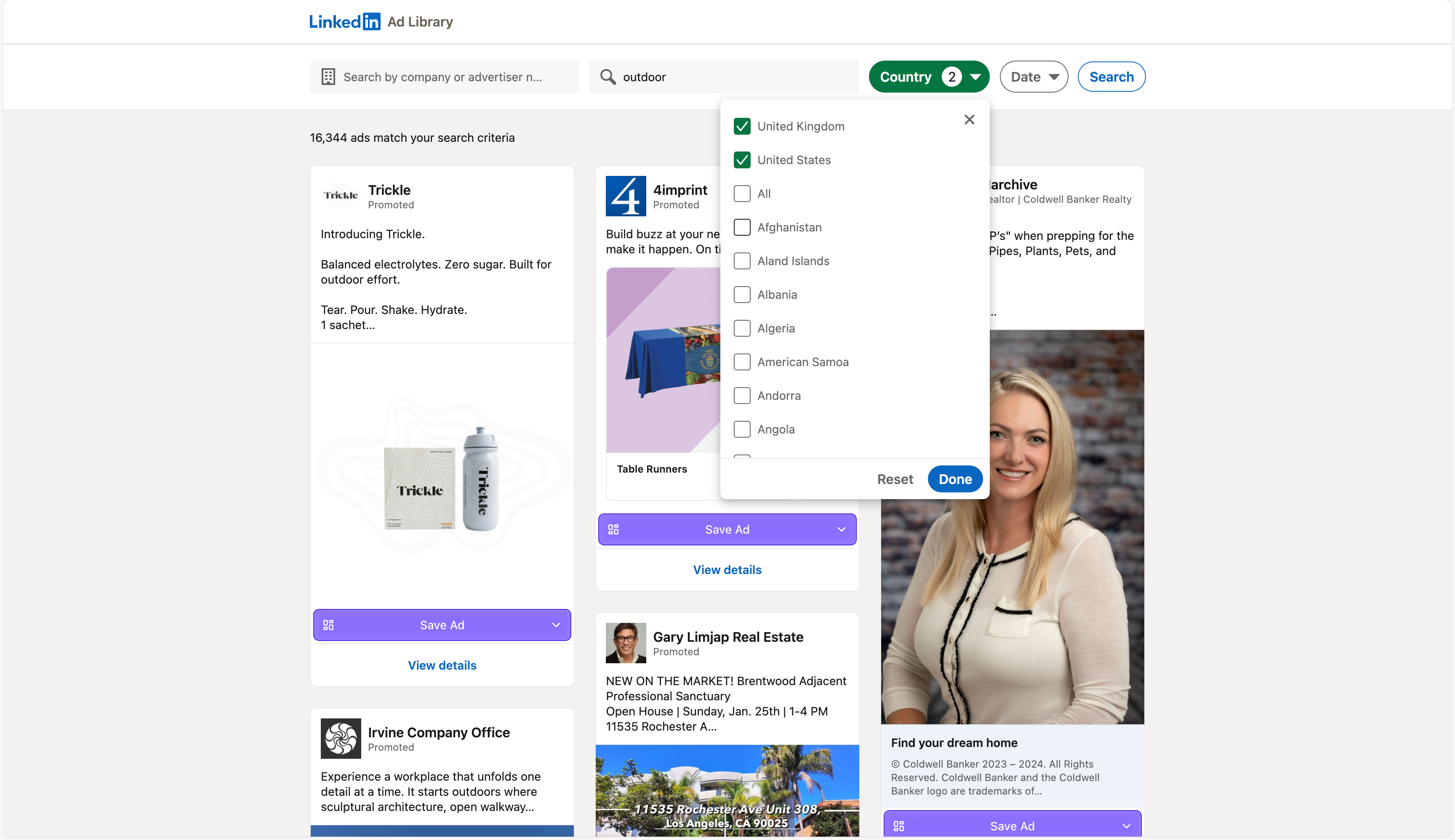
Step 3) Filter by country + date range (so it matches your market)
If your revenue is concentrated in one region, filter like it:
- set the country to where your deals close,
- and use date range to isolate recent messaging.
This helps you avoid learning from outdated positioning or irrelevant markets.
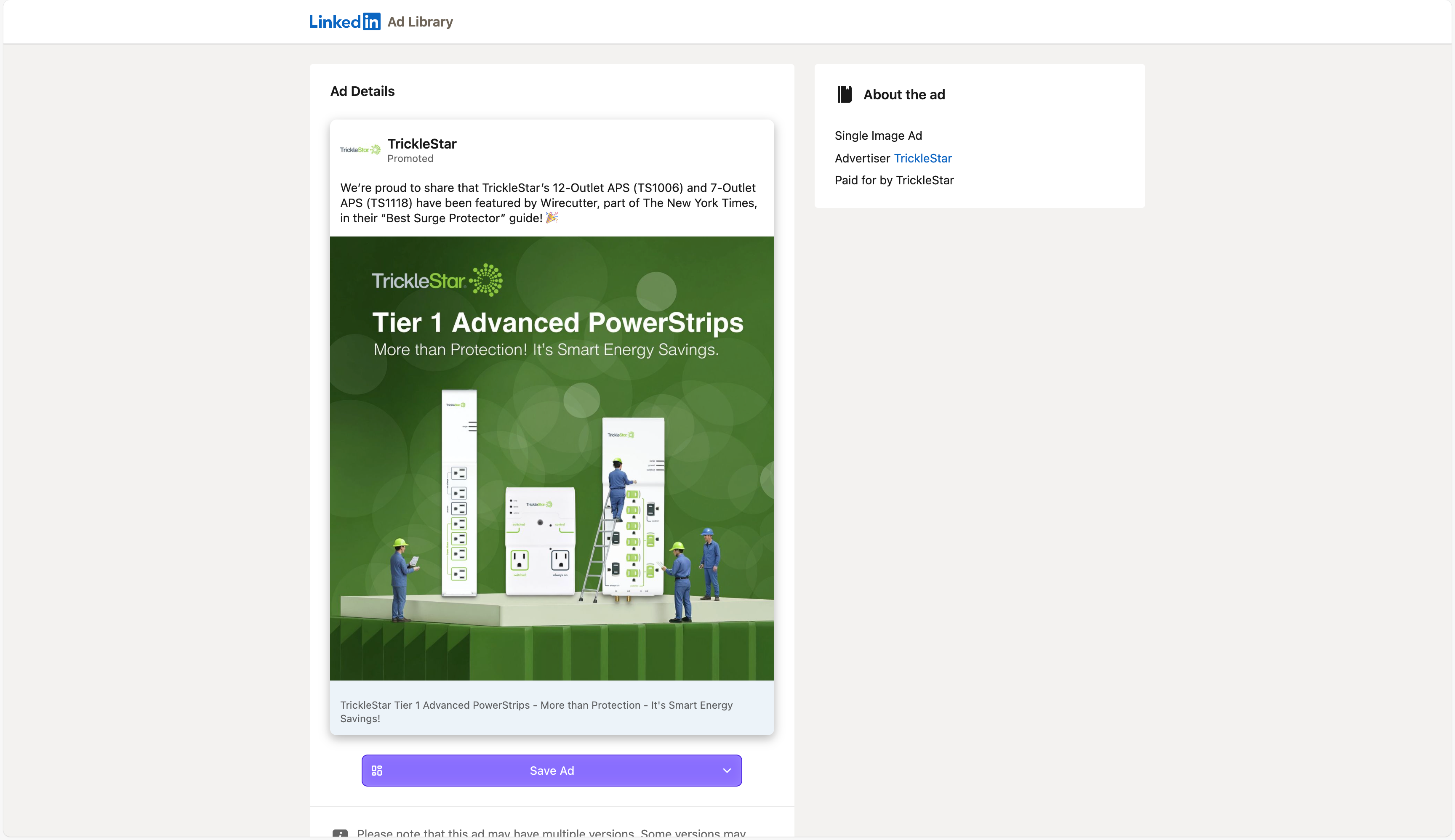
Step 4) Click “View details” and capture the same fields every time
The difference between “research” and “scrolling” is consistency.
For each ad, record:
- Advertiser + payer (if shown)
- Format (Single Image / Video / Carousel / Document / Messaging / Lead Gen, etc.)
- Headline + primary text structure
- Offer type (demo / report / webinar / case study / template)
- CTA
- Proof type (logos, metrics, testimonial, quote, screenshot, analyst mention)
- Landing page or on-platform conversion path (Lead Gen Form)
Step-by-step: Decode B2B intent (format + offer + CTA)
LinkedIn ad performance is tightly connected to intent. The format often reveals the job the ad is trying to do.
1) Map format → intent
Common patterns:
- Document Ads → education + lead capture (high “save” behavior)
- Video Ads → positioning + narrative + authority
- Carousel Ads → step-by-step frameworks, feature breakdown, proof sequences
- Lead Gen Forms → frictionless signup (webinar, report, newsletter, demo request)
- Message/Conversation Ads → guided conversion paths (multiple CTAs)
2) Identify the offer ladder (what they want first)
Most B2B brands aren’t selling the product in the first click. They’re selling the next step.
A typical ladder looks like:
- TOF: report/template/benchmark → email capture
- MOF: webinar/event/case study → qualification
- BOF: demo/pricing consultation → pipeline
When you see the same ladder repeated across multiple ads, you’ve found their growth engine.
3) Extract “role-based claims”
LinkedIn creative wins when it speaks to:
- a specific role
- a specific pain
- a specific outcome
Examples of claim framing:
- “For RevOps: Fix forecasting accuracy in 30 days”
- “For CFOs: cut waste with spend governance”
- “For Demand Gen: increase MQL-to-SQL conversion with better creative testing”
Your research goal is to find the role → pain → promise patterns that keep repeating.
A practical LinkedIn ad breakdown checklist
Use this checklist to turn an ad into a test plan:
- ICP role: who is the ad speaking to?
- Pain trigger: what problem does it call out?
- Promise: what outcome is offered (time, money, risk, speed)?
- Mechanism: why should I believe you (how it works)?
- Proof: what evidence is shown (logos, metrics, testimonial, demo)?
- Offer: what is the “next step” (report/webinar/demo)?
- Friction: what does the user have to do (Lead Gen vs landing page)?
- CTA: what action is asked—and is it aligned with funnel stage?
- Creative structure: hook → explanation → proof → CTA (what’s the sequence)?
- What to test next: one hypothesis you can run in 7 days.
Advanced tips: find strategy, not noise
Tip 1) Track “repeat concepts,” not “new posts”
On LinkedIn, some brands post endlessly. Winners are the concepts that persist (same offer, many variants) or spread (same angle, multiple formats).
Tip 2) Reverse-engineer their testing plan
Look for:
- same offer, multiple hooks
- same hook, multiple proofs
- same proof, multiple landing pages or Lead Gen versions
That’s their test matrix.
Tip 3) Build a B2B hook bank (by role)
Your hook bank should be organized by ICP:
- Demand Gen hooks
- RevOps hooks
- Sales hooks
- Marketing leader hooks
- Finance/CFO hooks
This prevents “generic B2B copy” and speeds up production.
Tip 4) Save the landing-page promise
The ad is the promise; the landing page is the proof. Always capture:
- headline angle
- proof order
- CTA framing
- objection handling (security, integrations, pricing, ROI)
Common problems and fixes
“I can’t find older ads”
LinkedIn Ad Library is built for transparency and has retention rules. If your competitor ran ads long ago, they may not appear.
Fix: save ads into your own swipe file when you find them.
“Ad preview / advertiser info is missing”
Some ads may be restricted or not fully visible depending on context.
Fix: use what’s available (format, offer, copy fragments), and capture pattern-level learnings.
“My team keeps redoing the same research”
That’s a workflow problem, not a people problem.
Fix: centralize saving + add tags + run a weekly curation routine + connect winners to next week’s brief.
Use Adlude to do it faster
Here’s the workflow that turns LinkedIn browsing into repeatable output:
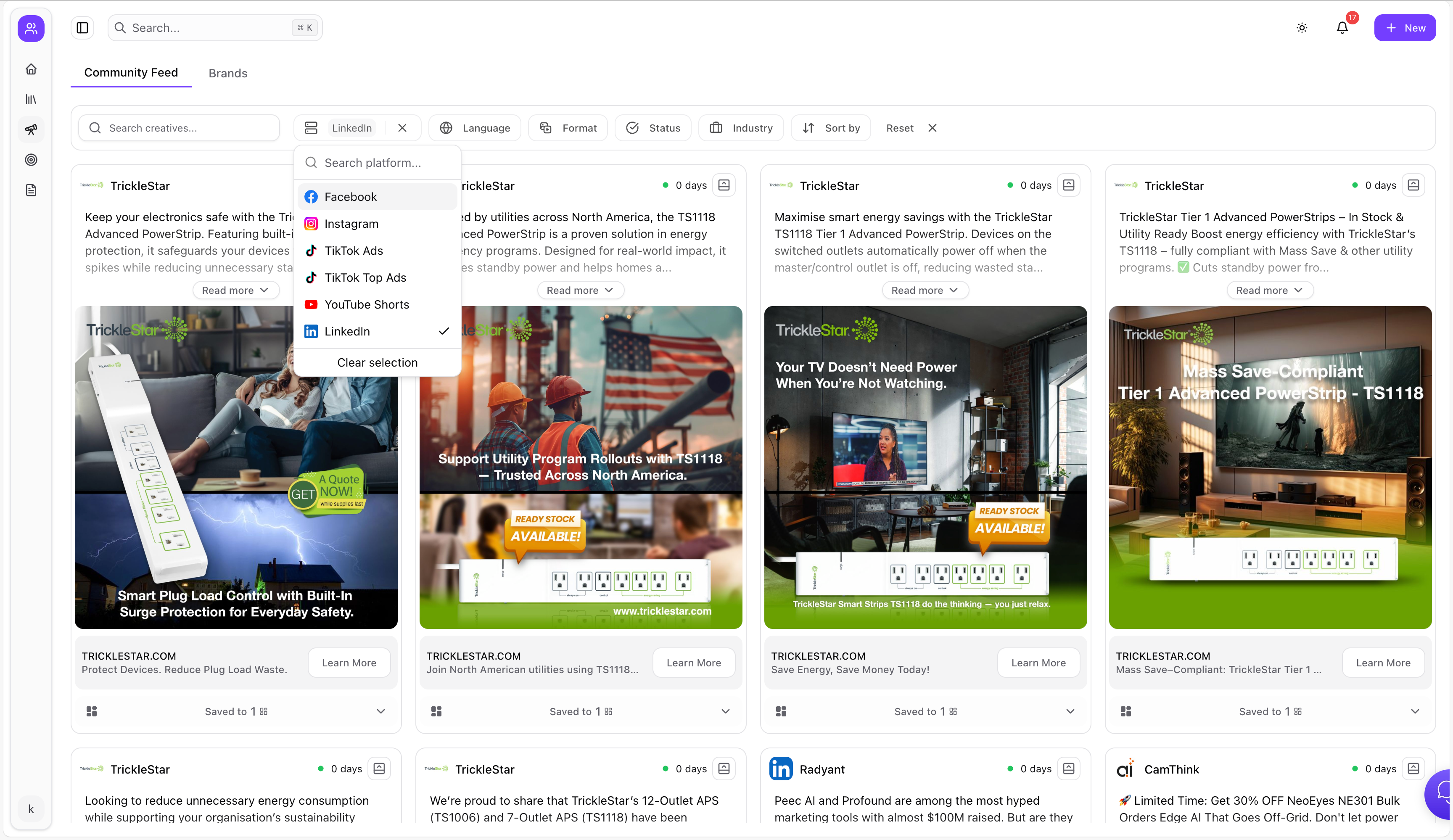
1) Discover LinkedIn winners faster (and compare cross-platform)
Use Adlude Discovery to search ads from LinkedIn, Facebook, TikTok, YouTube Shorts and more—then filter by keyword, platform, language, format, and industry. It also supports AI scoring and video transcription to help you extract hooks faster.
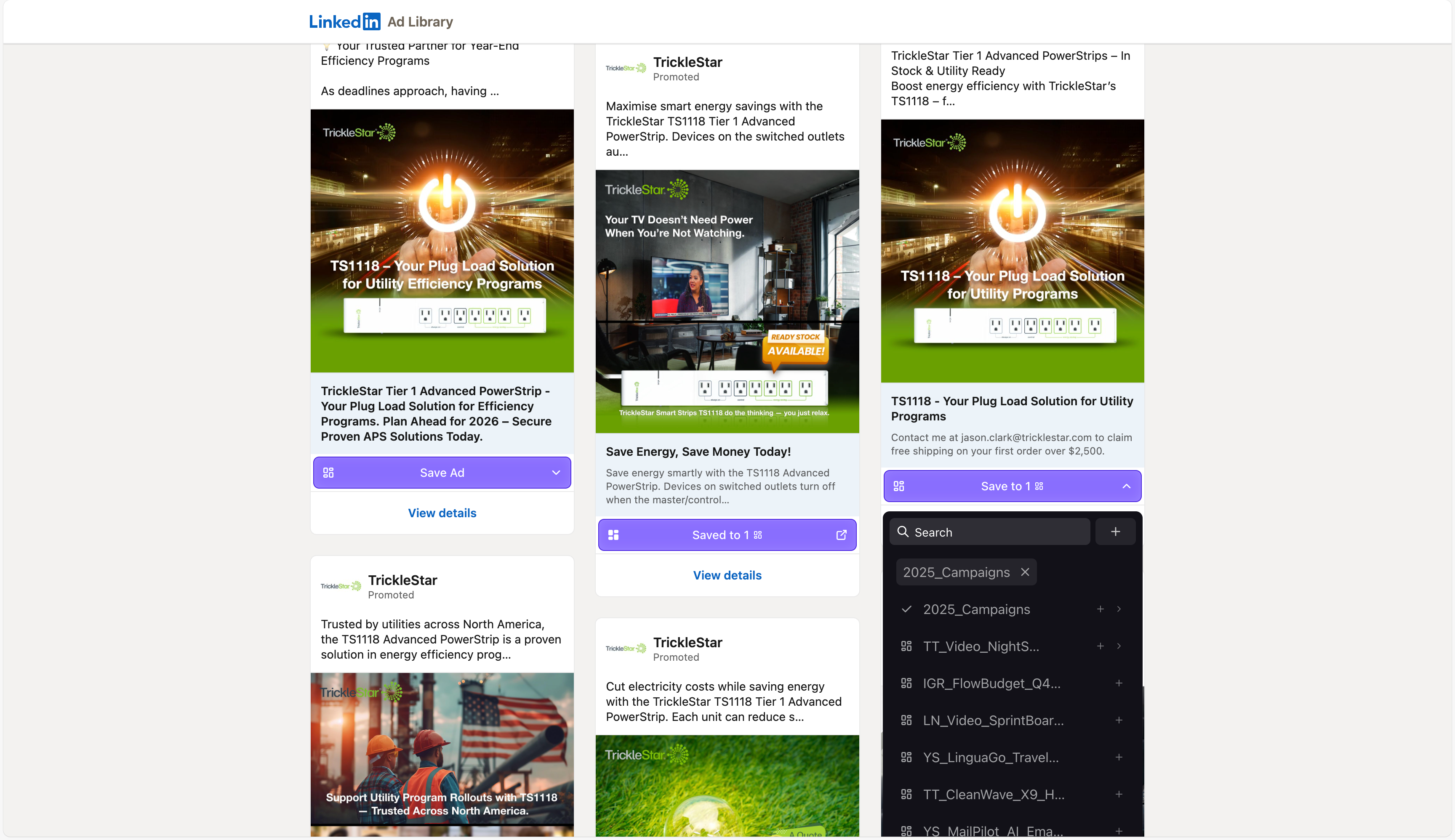
2) Save LinkedIn ads with one click (creative + copy + URL)
Use Adlude Ad Saver (Chrome/Edge) to save creatives from LinkedIn Ad Library with one click—stored permanently in the cloud.
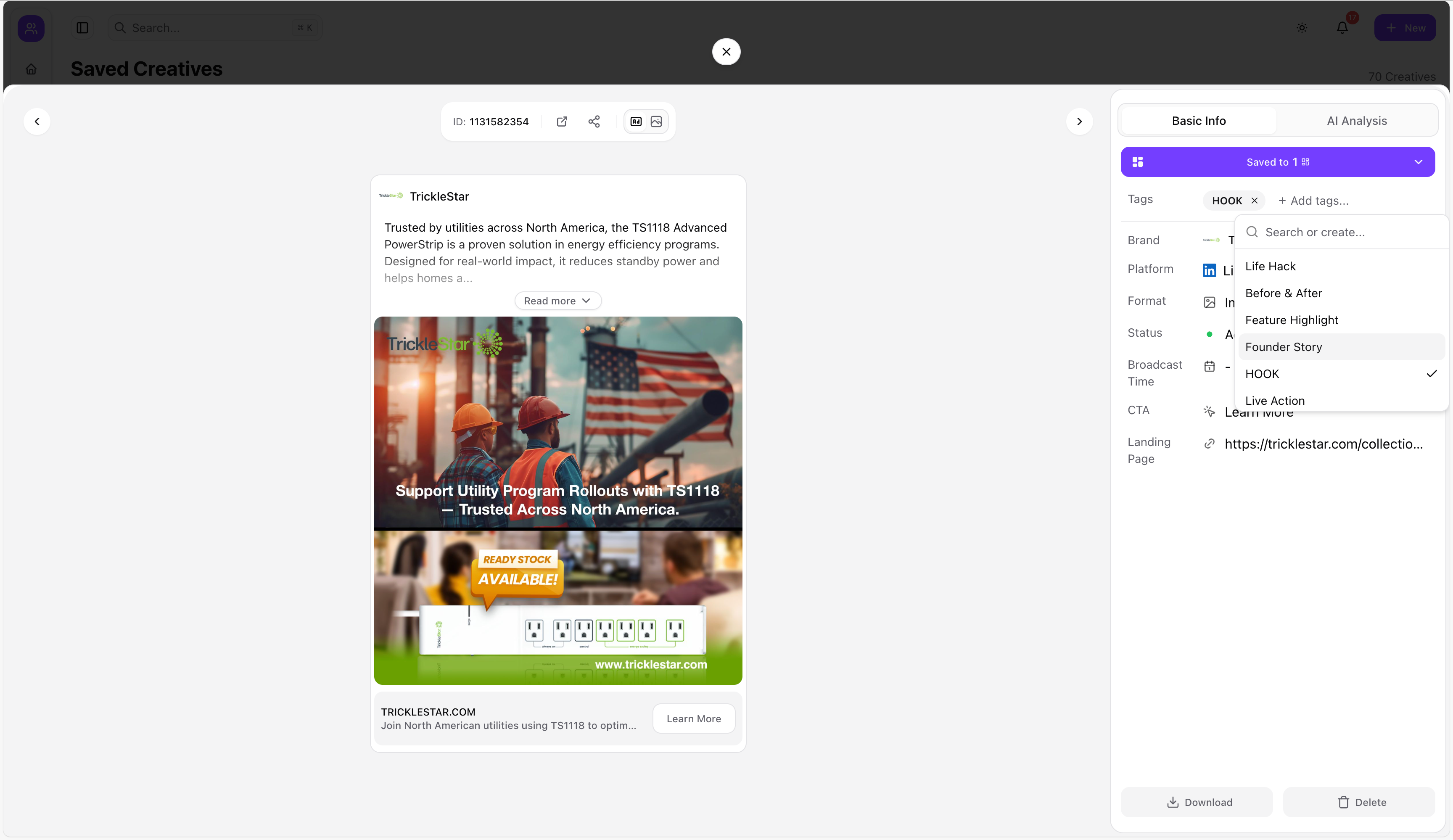
3) Organize your LinkedIn research into a swipe file you’ll reuse
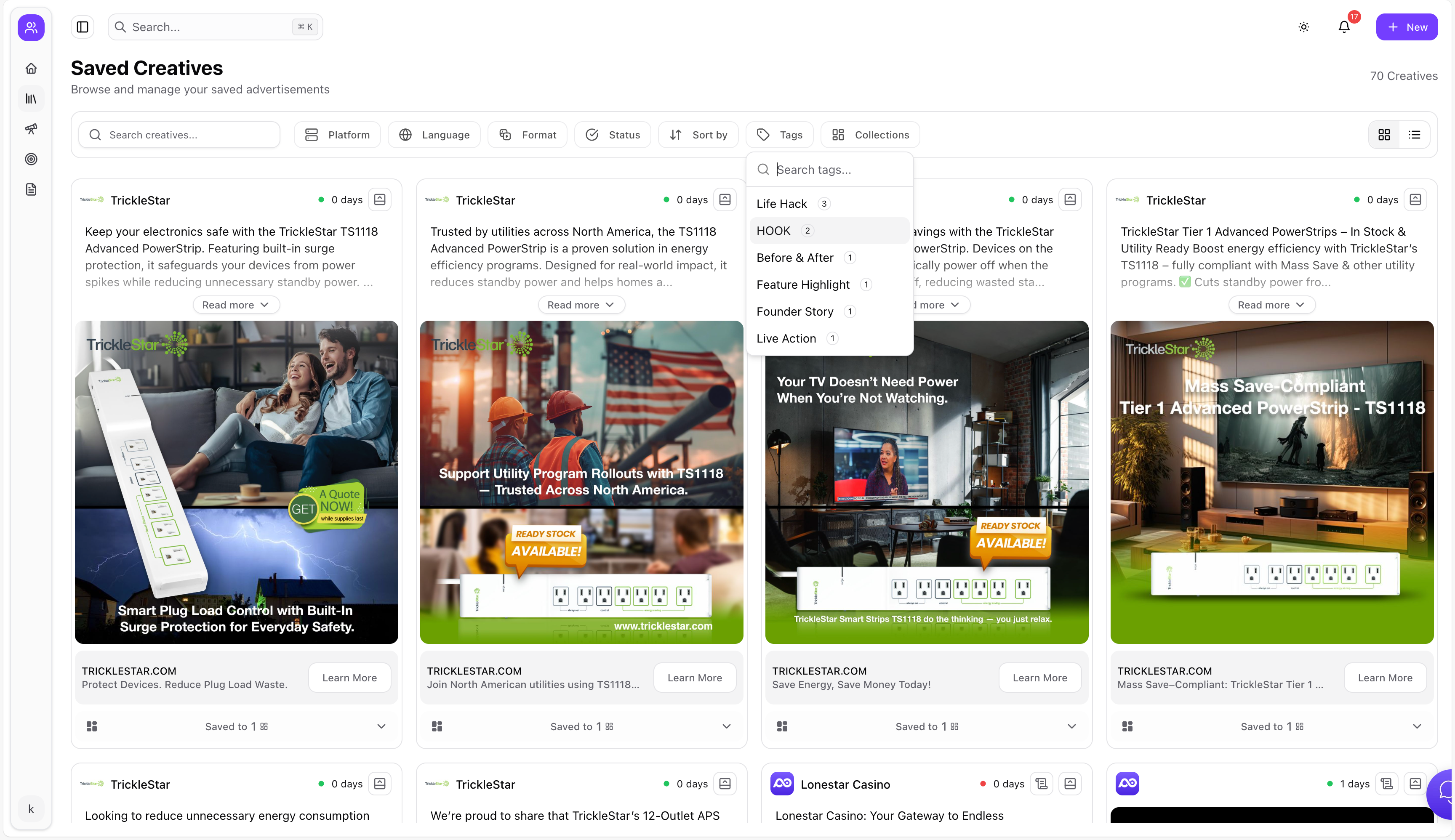
In Adlude Swipe File, you can search saved ads by keyword, organize with nested folders, add smart tags, and keep a clean B2B library across brands and offers.
4) Break down winners and turn them into scripts + briefs
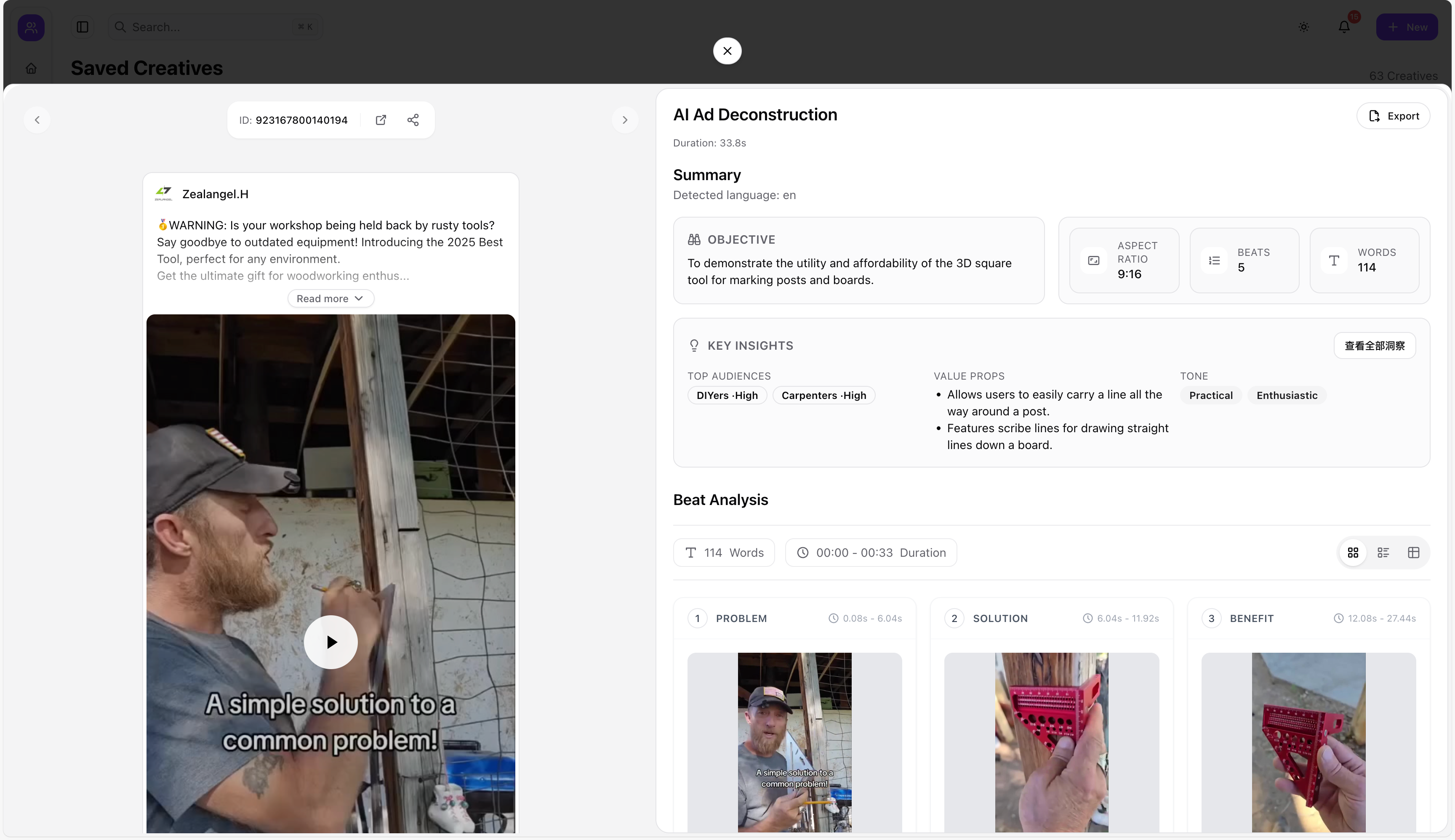
- Use AI Ad Breakdown Tool to deconstruct structure, copy strategy, visuals, and conversion logic.
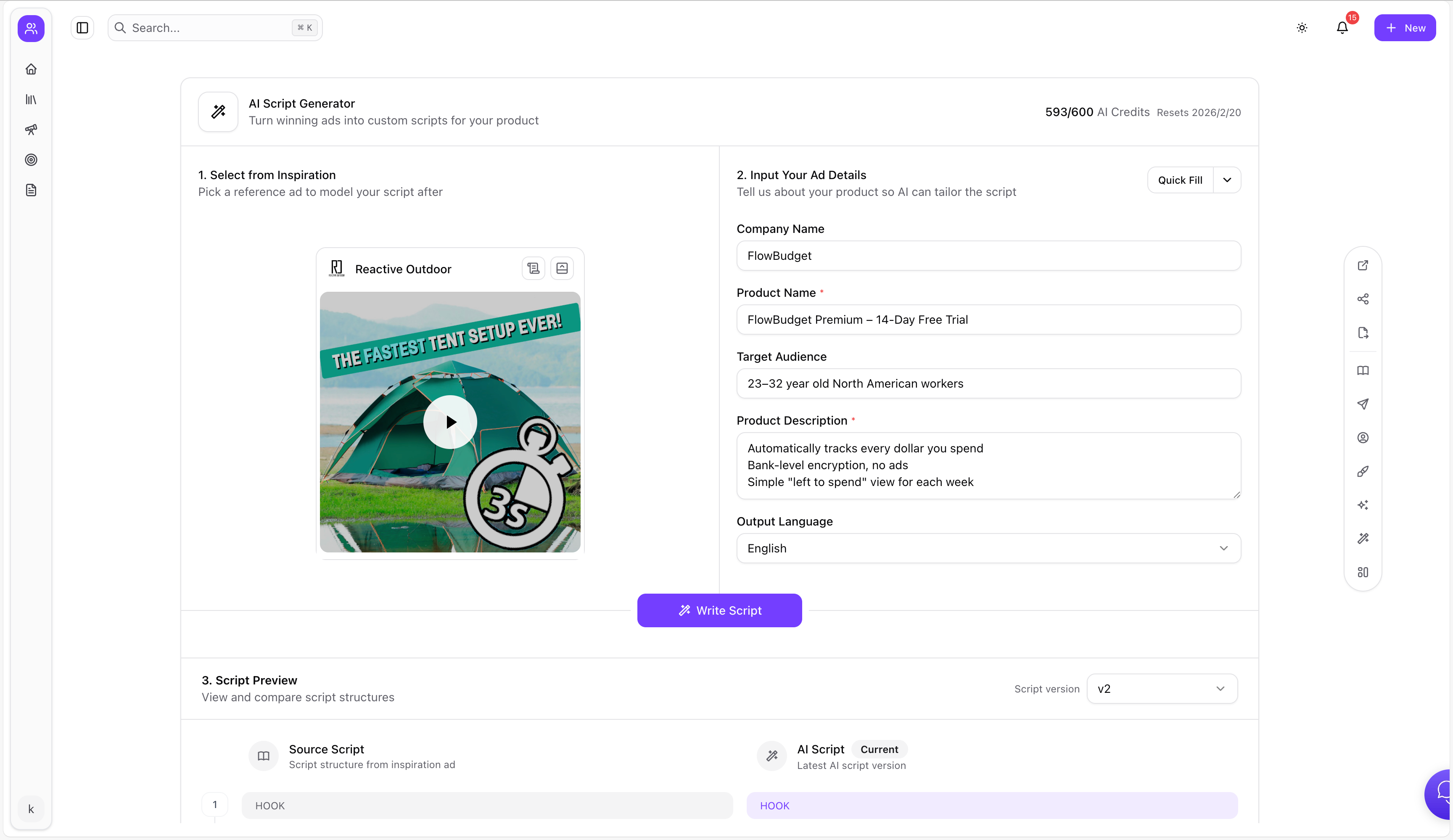
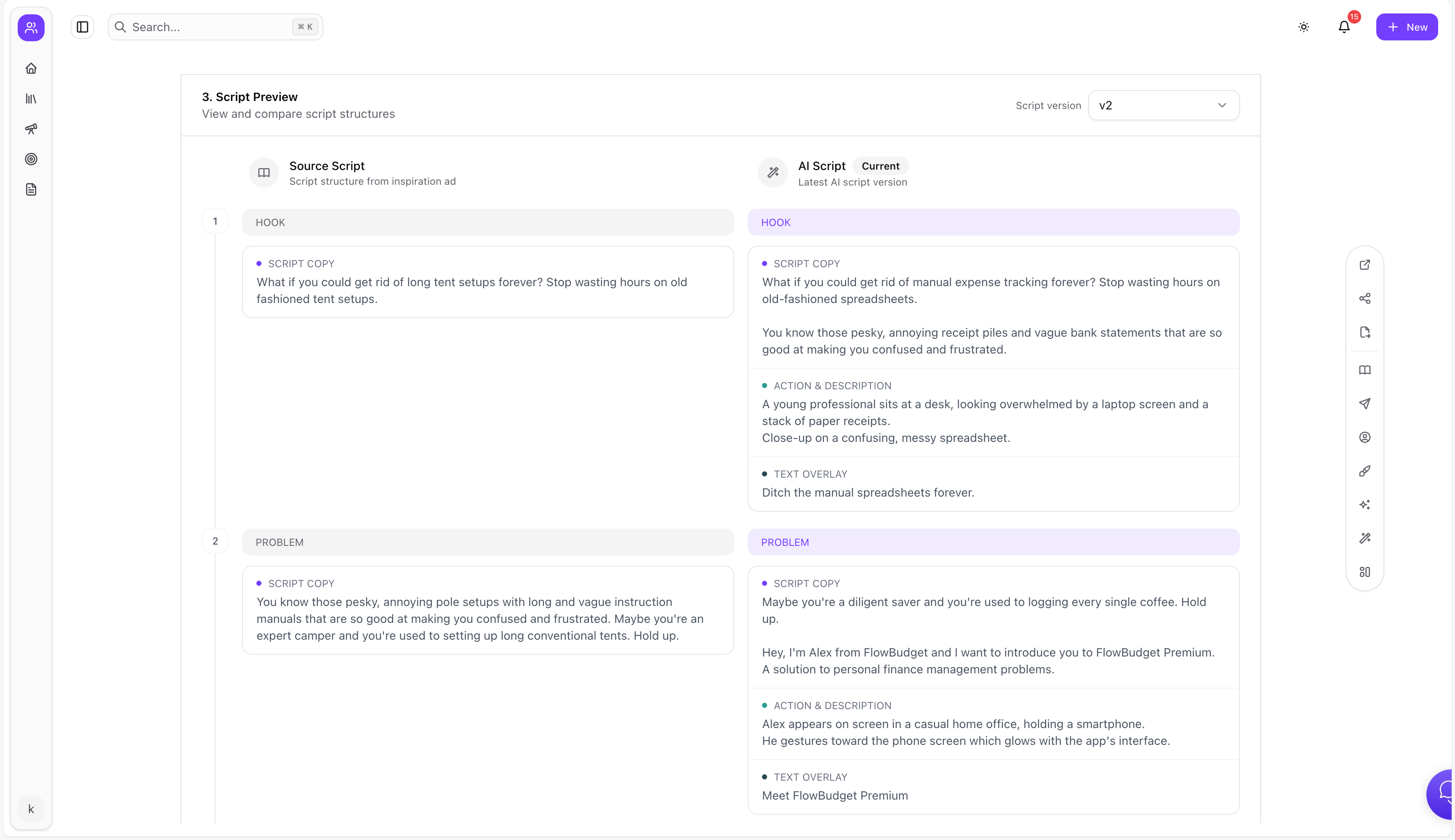
- Use AI Ad Script Generator to generate scripts tailored to your product from a reference ad link.
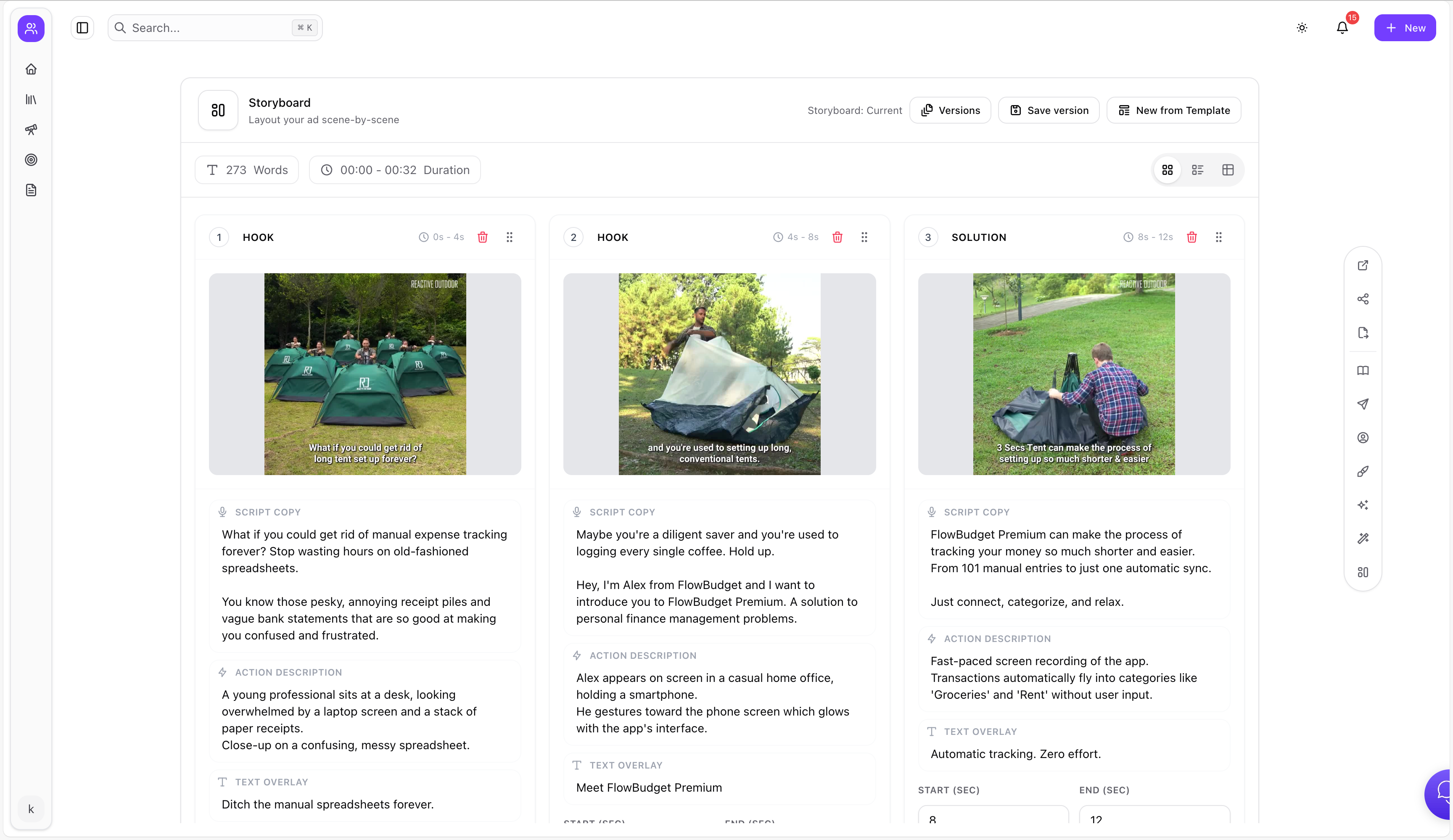
- Use Brief to turn scripts into production-ready storyboards and shot lists, with export options.
FAQ
Is LinkedIn Ad Library free?
Yes—LinkedIn provides the Ad Library publicly for transparency, and marketers can use it for competitor research.
Can I download competitor LinkedIn ads directly from LinkedIn?
LinkedIn is primarily designed for viewing and transparency, not “download workflows.” For research teams, it’s usually faster to save the full creative + copy + URL into a swipe file, then download internally when needed.
What’s the best way to learn from LinkedIn competitors without copying them?
Copy the structure, not the creative:
- role-based pain → proof → offer → CTA
Then rewrite using your brand’s claims, evidence, and product reality.
What LinkedIn formats should I pay attention to for B2B?
Most B2B categories lean heavily into:
- Document Ads (lead magnets)
- Lead Gen Forms (low friction conversion)
- Video (positioning + narrative)
But the best answer is: track what your competitors repeat and test from there.
How do I build a LinkedIn hook bank quickly?
Transcribe video ads, extract the opening line and first on-screen text, then tag by ICP role and angle. A hook bank becomes your “creative leverage” across quarters.